
Voiding a prescription removes the dispense transaction and allows inventory and billing actions to be applied as part of the void process. During the void, users determine how inventory should be handled, whether a billing credit should be issued, and record the reason for the void.
Requirements for Voiding a Prescription
A prescription cannot be voided if patient returns have been recorded against the dispense. If returns exist, the Void Prescription button will not be available, and the inventory section will display Edit Not Available. All associated returns must be removed before the prescription can be voided.
Warning: Voiding a prescription is permanent. A voided prescription transaction cannot be reversed.
Note: Documents attached to a prescription remain available after the prescription has been voided. Additional documents may also be attached after the void is completed.
Voiding a Prescription
- Open the participant's profile and locate the prescription you want to void.
- Click the Edit link for the prescription.
- Scroll to the bottom of the Prescription Details section.
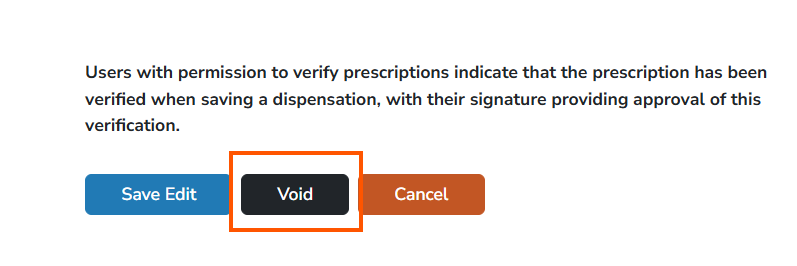
- Click Void Prescription. A void dialog window opens.
- Select the appropriate inventory disposition:
- Reverse inventory to the original location, or
- Adjust inventory as wasted
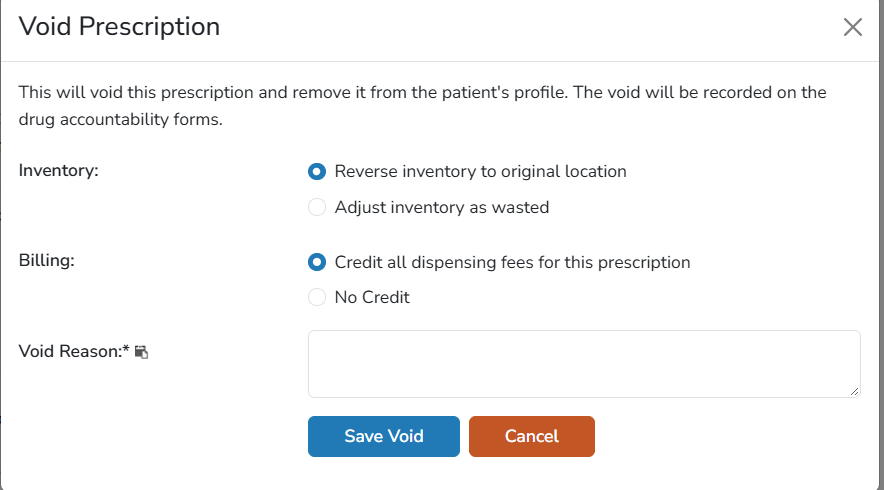
- If inventory should be returned for future dispensing, select Reverse.Vestigo returns all full-tracking inventory to its original location.
- If inventory should not be returned to stock, select the appropriate disposition:
- Quarantine
- Destroy
- Sent Back to Sponsor
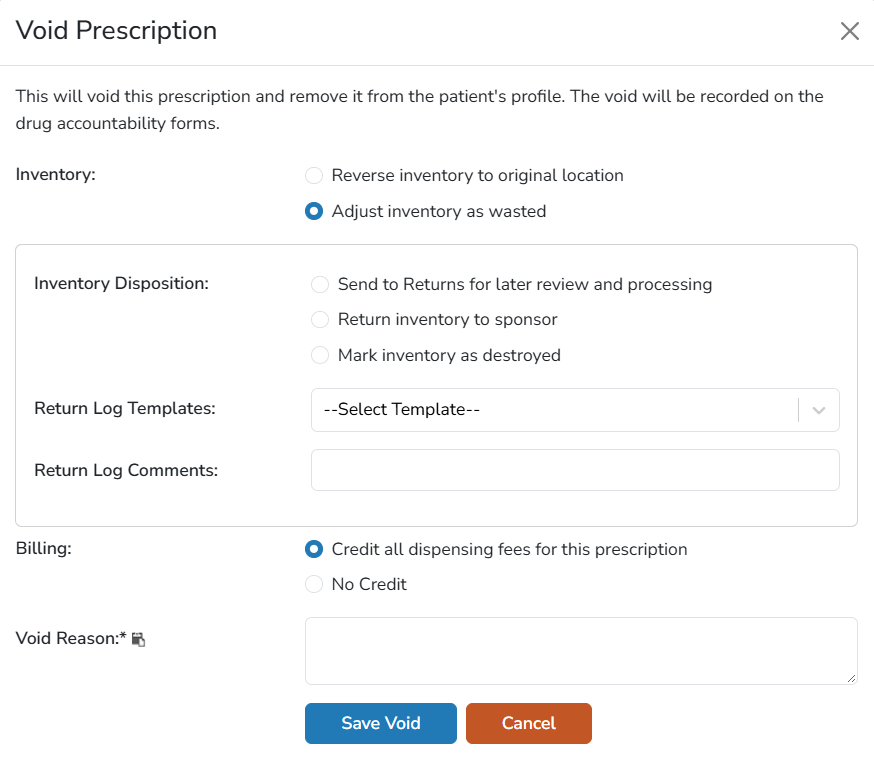
- If inventory should not be returned to stock, select the appropriate disposition:
- Select the billing action:
- Credit
- No Credit
- If issuing a credit, select Credit. If the charge has already been invoiced, Vestigo creates a credit entry for the invoiced amount. If the charge has not been invoiced, the original charge is deleted.
- If no billing adjustment is required, select No Credit. The original billing charge remains unchanged.
- Enter a reason for the void in the Void Reason field. The entered reason is recorded in the accountability logs.
- Click Save Void. The prescription is permanently voided and cannot be restored.
Inventory Options During a Void
| Option | Result |
|---|---|
| Reverse | Returns full-tracking inventory to the original inventory location. |
| Quarantine | Moves inventory to quarantine status. |
| Destroy | Records inventory as destroyed. |
| Sent Back to Sponsor | Records inventory as returned to the sponsor. |
Billing Options During a Void
| Option | Result |
|---|---|
| Credit | Creates a billing credit for invoiced charges or removes uninvoiced charges. |
| No Credit | Leaves the original billing charge unchanged. |