
When this setting is set to yes, all inventory received must be associated with an ordering investigator and any co investigators. During inventory receipt, users will be required to select an investigator from a drop down menu.

By default, when a protocol is created, this protocol flag is not set to yes or no. Users are required to check this flag to yes or not before they can receive inventory on a protocol. If a protocol is copied from another protocol, the newly copied protocol will use the setting from the source protocol.
Tip - It is highly recommended to enable this on all NCI/CTEP trials prior to receiving any inventory into the protocol. If you did not have the setting turned on and want to turn it on with an existing protocol, please check out this section.
When the setting is enabled on the protocol, each investigator will have their own Control and Satellite DARFs. Any contact that has been added to the protocol as Primary Investigator or Co-Investigators will be eligible to be listed as an ordering investigator. If any of those contacts are no longer on the protocol and have been inactivated as a contact, historical data will be maintained for those records.
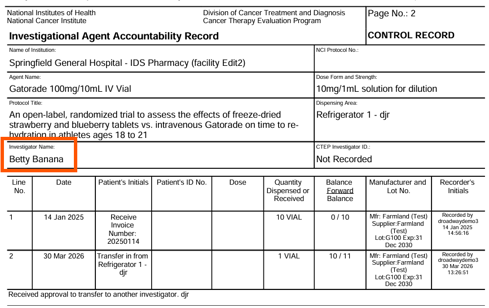
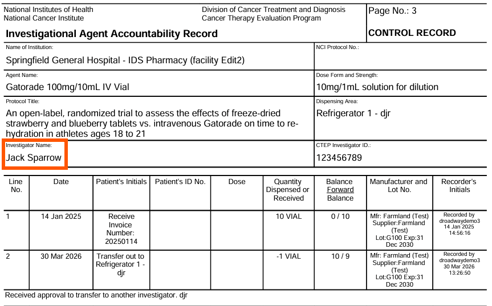
If the setting is set to no, the NCI DARF will display the Primary Investigator.
Receiving Inventory
When sites have the flag enabled, users will see an extra field on the inventory details screen during receipt. This field is a required field during receipt.

It is possible to receive inventory with multiple different ordering investigators, but it is recommended to create an individual receipt for each investigator, if you received inventory from multiple different investigators.
Transferring Inventory to Another Investigator
If you have received approval to transfer the inventory from one investigator to another, users should use the Immediate Transfer functionality within Vestigo. This function will preserve the historical data of the initial receipt and show the transfer to the new investigator on the DARF.
Editing inventory to assign the new investigator should not be used in this situation. If you edit the inventory, it changes historical information about the investigator, back to the original receipt of the inventory.
Enabling the Inventory Tracking by Investigator After Receipts
If a protocol was setup without this flag turned on, but sites wish to enable it, it may not be possible on the protocol.
If you only ever ordered inventory under the Primary Investigator or a single Co-Investigator, and it was confirmed by reviewing all previous receipt documentation, it would be safe to edit the inventory and assign the correct investigator.
Multiple Ordering Investigators and Receipts
If you have read through historical receipt documentation and you have multiple different investigators, then the site will have to determine how the inventory was received. Sites will have to navigate to the View/Edit Inventory screen, select the correct drug build, and then uncheck the status flag to see all inventory that has ever been on hand.
Users will need to review each inventory ID ever received and look at all transactions. If you have received inventory multiple times under one inventory ID, it will need to be determined if all of the recorded receipts were from one investigator. If they haven't then there is no edit that the site can take to correct the receipt. Users will have to create a NTF or use the option to place a DARF note on the accountability log.
If they have, then the next step is to determine if any recorded dispenses were for participants that were eligible for the inventory. If they were, then you would be safe to edit the inventory to assign the ordering investigator. If they haven't then there is no edit that the site can take to correct the receipt. Users will have to create a NTF or use the option to place a DARF note on the accountability log.