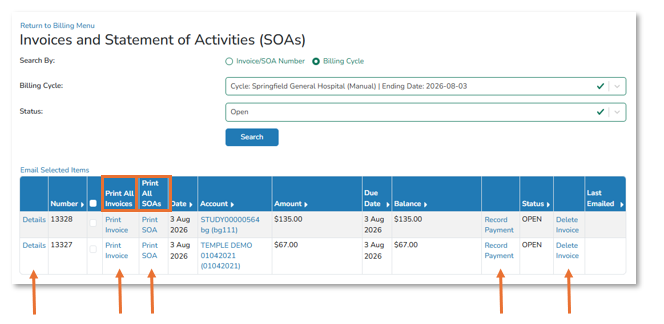
Vestigo generates invoices and statements of activity as PDF documents. Each document is based on one billing account and one billing cycle.
Warning - Deleting an invoice cannot be reversed. Its charges return to To Be Billed status.
To change an invoice, delete the invoice, update the applicable information, and add the activity back to the cycle. Reprocessing creates a new invoice number.
Opening Invoice Management
- Select a billing cycle on the Billing Main page
- Select Manage Invoices and Record Payments
- Use the available link for the action you need
Available Invoice Actions
- Details: Opens invoice activity details.
- Print Invoice or Print SOA: Opens a printable PDF.
- Record Payment: Records a payment for the selected invoice.
- Delete Invoice: Removes the invoice and returns its charges to To Be Billed.
- Print All Invoices or Print All SOAs: Creates a PDF containing all documents of the selected type for the cycle.