
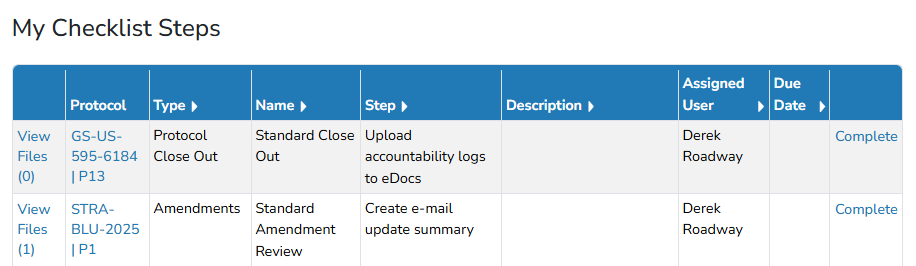
Checklist steps can be completed from within the protocol or through the Alert Panel. Users can also generate the Protocol Checklist Report to review checklist information, individual steps, and overdue activities at either the facility or protocol level. A user must be assigned to a checklist step before the step can be marked as completed.
Required Permissions
The below permissions are all related to checklists and depending on the action the user is trying to take, they may need more than one of the permissions.
ManageChecklistTemplates - Ability to manage Checklist Templates
About Completing Checklist Steps
Checklist steps can be assigned to Vestigo users to identify who is responsible for completing each activity. A user must be assigned to a step before it can be marked as completed. Assigned steps can be completed from the protocol’s Checklists tab or through the There is checklist step assigned to you alert in the Alert Panel.
Completing a Step from the Protocol
Users can complete the checklist step from the protocol if they are assigned to the user.
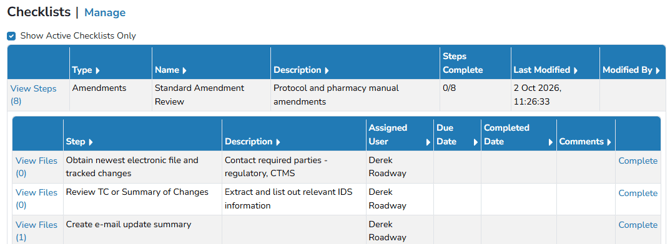
- Navigate to the Protocol
- Click on the Checklists Tab
- Locate the appropriate Checklist and click View Steps
- Click Complete
- Adjust the Completed Date, if needed
- (Optional) Enter any Comments
- Click the blue Save button
If the checklist step is unassigned or assigned to another user, users can edit the checklist and that specific step to mark it as complete.
Completing a Step from the Alert Panel
The Checklist Step alert is nested under the Protocol Operations tab of the alerts panel.
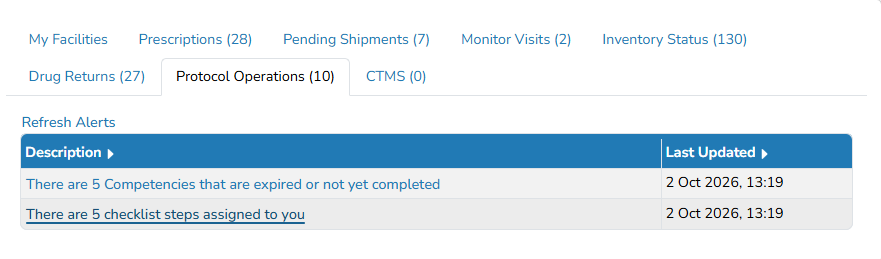
- On the home page, click the Protocol Operations tab
- Click on the Checklist Steps Assigned to you Alert
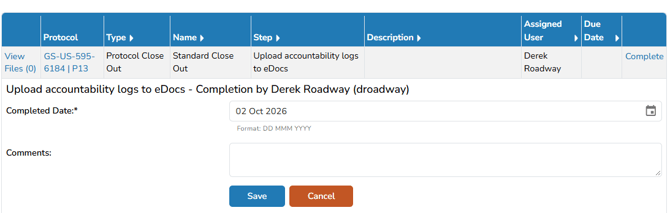
- Locate the step and click Complete
- Adjust the Completed Date, if needed
- (Optional) Enter any Comments
- Click the blue Save button
Reports
The Protocol Checklist Report can be accessed from two locations:
- From the green navigation menu, select Reports, and then locate the report under Protocol Reports. This option allows users to review checklist data for all protocols across their accessible facilities or for a selected facility.
- From within a protocol, select Reports, and then locate the report under Protocol Reports. This option displays checklist data only for the selected protocol.
The report can be generated in Summary or Detailed format. The Summary report provides information about each checklist, while the Detailed report includes the same checklist information along with each associated checklist step. Both formats also provide the option to include overdue steps and generate as a spreadsheet.