
By moving financial management straight into the platform, it eliminates external spreadsheets, standardizes fee structures, and ensures accurate fiscal oversight throughout the entire trial lifecycle.
Once a budget is created, users can print the budget. The budget will show all potential fees, along with protocol specific information and even include any site logos that may have been uploaded to App Admin.
Required Permissions
EditProtocolBudget – Ability to edit protocol budgeting tab.
ViewProtocolBudget – Ability to view protocol budgeting tab.
Contents
Loading the Budget on a Protocol
Creating the Budget
- Navigate to the Protocol
- Click on the Budgets Tab
- Click on Manage
- Click on Add New
Tip - When creating a name, consider any local policies on nomenclature, but we recommend adding information relating to the version of the protocol, even if it is initial version.
- Provide a Budget Name
- Provide a Budget Type
- (Optional) A Billing Fee Template can be loaded (optional).
- Provide a Start Date
- Provide an End Date
- (Optional) Enter a Description
- (Optional) Select a Budget Header or enter one manually.
- (Optional) Select a Budget Footer or enter one manually.
- Click on blue Submit button
The newly created budget will appear in the budgets tab. Users can edit all of the information that was entered when creating the budget. Users can also manage supporting documentation by clicking Manage Files and adding documents to the budget.
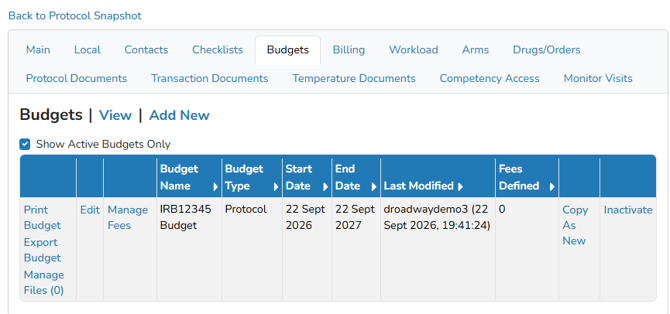
Managing Budget Fees
Once you have a budget created, users can start adding the potential fees for all types of transactions and scheduled fees. Users can add fees to 10 categories: One Time Fees, Scheduled Fees, Patient Fees, Monitor Visit Fees, Shipment Receipt Fees, Dispense Fees, Send Out Fees, Patient Send Out Fees, Competency & Training Fees, Protocol Close-Out Fees.
Adding a Budget Fee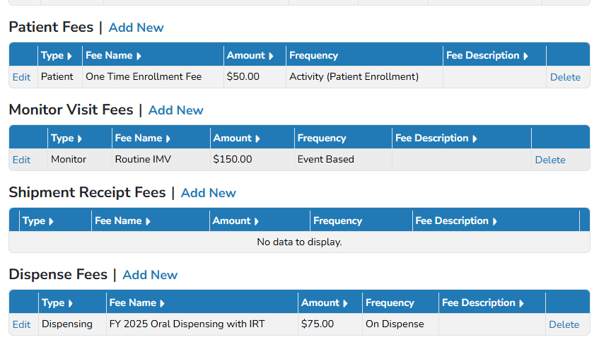
- Navigate to the Protocol
- Click on the Budgets Tab
- Click on Manage
- Locate the Budget and click on Manage Fees
- Locate the category to add the new fee and click Add New
- Select a Fee from the drop down
- (Optional) Adjust the Price to fit the specific protocol or leave as default
- (Optional) Check the flag to block all automatic price updates when the fee price is updated at the global level
- (Optional) Enter a Fee Description
- Click the blue Submit button
- Repeat steps 5 through 10 for any additional fees
For some fees like Scheduled Fees, users will have additional options to select such as Frequency or an additional Flag that allows certain fees to not start until Inventory has been received.
Deleting a Budget Fee
- Navigate to the Protocol
- Click on the Budgets Tab
- Click on Manage
- Locate the Budget and click on Manage Fees
- Locate the fee to be removed and click on Delete
- Click Confirm to remove the fee
Loading the Budget on a Protocol
If a user has created a budget on a protocol and the protocol has never had any previous fees applied, users can load the budget to the protocol to minimize the amount of repeat work by adding the same fees. If the option is not available, that indicates that the protocol at one point had a fee added to it.
- Navigate to the Protocol
- Click on the Billing Tab
- Click on Manage
- (Optional, but Recommended) Add a Billing Account
- Click Add New in the Billing Account for this Protocol
- Select the appropriate account or Create a New Billing Account
- Click the blue Submit button
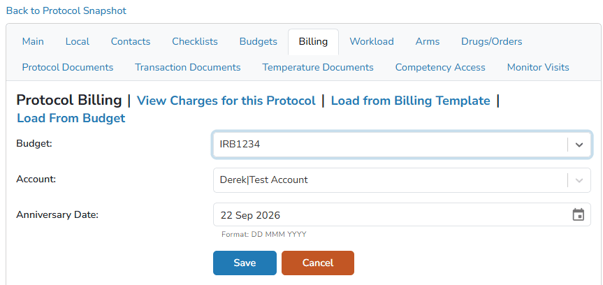
- Click on Load From Budget
- Select the appropriate budget from the Budget menu
- Select the account add previously or leave as DO NOT BILL
- Modify the Anniversary Date if it is different from the default date.
Tip - The anniversary date is the service date that any One Time Fees will be charged as, and will also act as the date for any recurring charges.
- Click the blue Save button
All the fees added to the budget will be loaded to the protocol. Users will need to take additional actions to ensure the dispensing fees are added appropriately on the order builds for the protocol.
Managing the Budget(s)
After the protocol activation, sites can use the Print Protocol link to print a PDF version of the budget. There is also an option to Export Budget, which generates a budget in a spreadsheet.
If a protocol amendment requires reworking the budget, users can Copy the previous Budget as a new budget and adjust the fees accordingly. If a budget is no longer needed, it can be inactivated with the Inactivate link.
Budget Reports
There is one report that supports Vestigo Budget functionality. The report is the Protocol Budget Report. This report can be found in two areas of Vestigo:
- Within the green banner, under Billing Management, and then under Billing Reports.
- Running the report this way will allow the user to look at Budget data for all protocols in any or all facilities that the user running the reports has a role in.
- Within any protocol, under the Reports tab.
- Running the report this way will allow the user to look at Budget data for the protocol in which the report is being generated.
Both pathways of generating the report will all the user to generate a Summary or Detailed report. The date range can be adjusted as needed. The summary version of the report will list detailed information about the Budget and the protocol it is associated with, and the detailed version will list the same information, but also include any fees associated with the Budget.