
The Vestigo Billing Portal provides visibility into billing accounts, invoice details, payment information, and protocol-related billing data. Users can download invoices, review account activity, and access protocol billing information through a secure portal interface.
Billing Portal
The Vestigo Billing Portal is an additional Vestigo module which provides visibility to account and billing details, access to download invoices, and account statements.
Vestigo Billing Portal access can be established for any Vestigo user, billing personnel with only portal access, and added to a Protocol Specific User’s account. Please see our manual titled “Application Administration – User Accounts and Security” to learn more about how to grant access to the portal.
Important - Users with Billing Portal access only can download the Download Charges report, which may contain patient initials and Patient Study Numbers (PSNs) for certain billing transactions. Access should not be granted to blinded personnel.
Billing Portal Sections
The portal consists of three distinct tabs to gather account details and charges.
- Invoices
- Billing Accounts
- Protocols
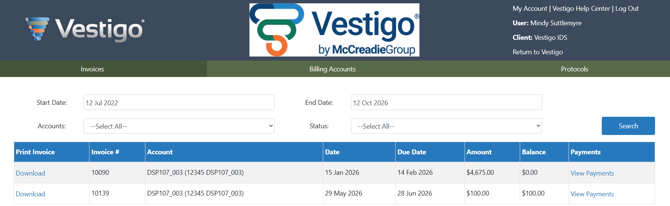
Invoices tab:
All users will land on the Invoices tab when logging in. The filters for Start and End Date, Accounts, and Status will allow users to control what displays on this tab. The filter for “Status”, Open or Closed, relates to whether or not the invoice is still open with an unpaid/balance remaining, or closed which means fully paid (payments entered in Vestigo). A user can narrow the invoices seen per account by using the “Accounts” filter.
Each row will be for one invoice per account. If there is more than one invoice per account during the date range set in the filters, then each invoice will have its own row.
The “Print Invoice” and “Payments” columns have a link to download the invoice and view payments made, respectively. If payments are not captured in Vestigo, the “Payments” link will display “No payments for this invoice”. Users do not have access to the Statement of Activity (SOA).
Billing Accounts tab:
The accounts tab only has one filter for “Account Status” which is related to “Account Status: Active or Inactive” on the Billing Account Management screen in Vestigo.
The user can view all invoices per an account.
Protocols:
The Protocols tab provides basic information about the protocol associated with the billing account seen on the other tabs. That information includes
- Protocol title
- Protocol status – Active or Closed
- Primary Investigator
- Account Name
- Account Number
- Account Status – Active or Inactive
- Download Charges report link
Billing Portal Users who only have “Billing Portal Access” and no other type of user account, will also have the ability to download the Download Charges report. This report will display the patient initials and the patient study number (PSN) for certain transaction charges such as dispenses. Because of this, we do not recommend granting access to blinded personnel.
Warning - Because the Download Charges Report may contain patient-identifying information, it should not be made available to blinded personnel.