
Setting up External Monitoring Visits
Monitoring visits can be scheduled through Protocol Management or directly from a Protocol. When scheduled through Protocol Management, multiple protocols can be added to a single monitoring visit. When scheduled directly from a protocol, only that protocol can be associated with the monitoring visit. Scheduled monitoring visits and access will display on the Protocol Management tab under Monitor Visits screen associated with the Main facility on the protocol. It will also appear on the Calendar associated with the Main facility.
Scheduling through Protocol Management
Below are the steps to adding a monitor visit/access through Protocol Management.
Note: When adding a visit/access, it is very important to be logged into the Main facility on the protocol.
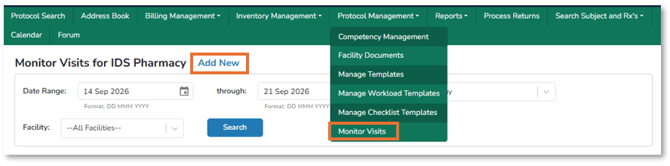
Step 1: From the Protocol Management drop down, select Monitor Visits, then Add New Visit.
Step 2: Enter a portion or full email address of the monitor to Search. There are other search options.
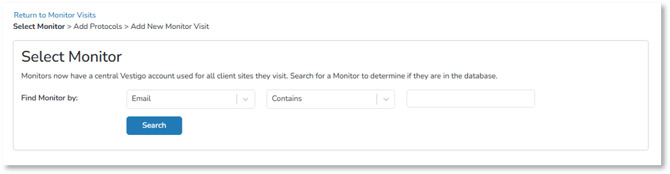
Any monitor that has visited/accessed Vestigo Verify™, even at another organization, will have their information returned on a search:
- Enter a partial or full portion of the monitors email or other search feature
- If the monitor is not located, please search by another filter. If still not found, please see next paragraph
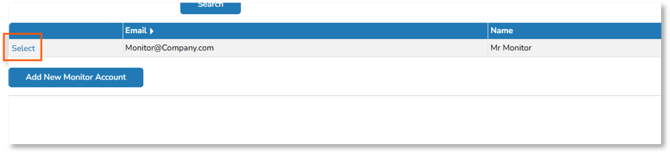
- Click Select to the left of the monitor for which you wish to schedule the visit
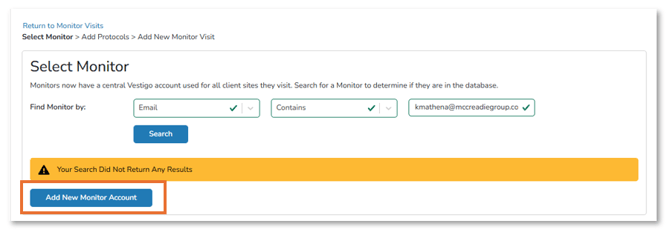
If a monitor has not been to any Vestigo client or the monitor is still not found using another filter, they will need to be added to Vestigo:
- Select Add Monitor Account
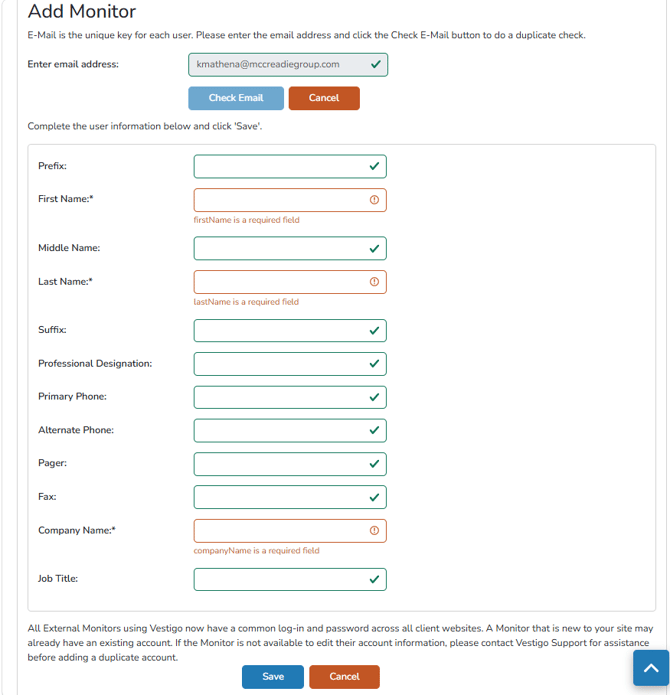
- Enter the monitor’s email address. Please Note: It is preferred that monitors can only use one email address in the system.
- Select Check Email
- Enter the monitor’s full name, primary phone, and company (all are required)
- Click Save
- Click Select to the left of the monitor for which you wish to schedule the visit
Step 3: Select Add Protocols
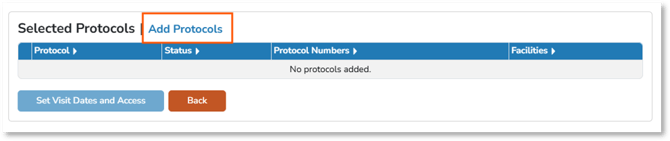
Note: When the monitor is granted visit and access to the protocol, they are also added as a contact to the study. Simply being a contact does not grant access.
If the monitor has been to your organization previously, the protocol(s) reviewed on their previous visit(s) will be listed:
- Select the appropriate box(es) for protocols to be accessed on this visit
- Select Add to Visit
- Close when done
- Select Search Protocol at the top of the screen
- Enter the protocol search information such as protocol number
- Select the check box as appropriate
- Select Add to Visit
- Repeat as needed to attach all protocols for the visit
- Close when done
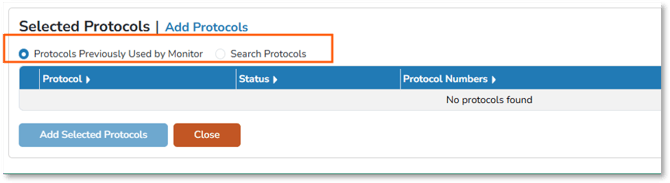

Note: To edit a monitor visit and access, the user must be logged into the facility that is indicated as the Main facility on the protocol.
If multiple protocols are added to a monitor visit and access, the visit and access will be associated with the Main facility of the first protocol selected.
Scheduling Directly through the Protocol
Below are the steps to adding a monitor visit/access through the Protocol
Step 1: Navigate to the protocol you wish to schedule a monitoring visit for.
Step 2: Select the Monitoring Visit tab.
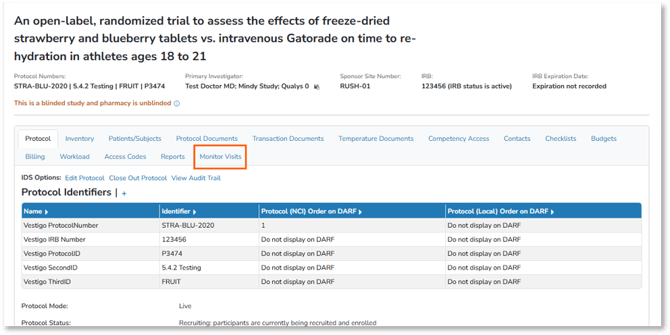
Step 3: All monitors that have previously had access will show as a contact to the study. If your monitor is listed, select Schedule a Visit.
- If the monitor is not listed Select Add Monitors (same process as above)
Step 4: Fill out Visit information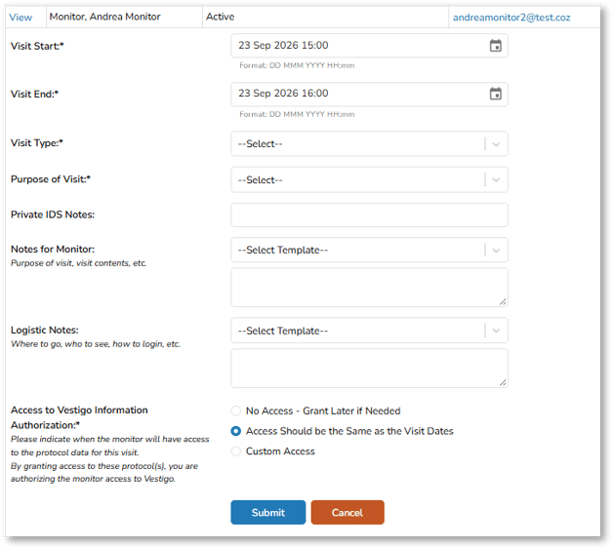
- Visit Start/End
- Visit Type
- Purpose of Visit
- Select Submit
Tip: Adding a note for the monitor is optional but can be helpful if there is important information to share regarding the visit. Any notes entered here will be included in the email notification sent to the monitor when the visit is scheduled.